Caratteristiche
Basata su Debian, distribuzione riconosciuta per stabilità e affidabilità in ambito server, Ubuntu Server ne eredita la solidità integrando aggiornamenti regolari e un ecosistema software ampio e costantemente aggiornato. Ubuntu Server può integrarsi facilmente in infrastrutture eterogenee, consentendo autenticazione centralizzata, condivisione di risorse e interoperabilità con sistemi Linux e Windows tramite protocolli e standard di mercato.
WireGuard è un protocollo VPN moderno, sicuro e leggero, progettato per offrire elevate prestazioni e semplicità di configurazione. È disponibile nei repository ufficiali di Ubuntu e si integra facilmente in ambienti server.
Con WireGuard VPN è possibile:
- creare tunnel VPN crittografati per collegare in modo sicuro sedi, server e client remoti;
- utilizzare un sistema di autenticazione basato su crittografia a chiave pubblica, semplice ed efficiente;
- integrare client e infrastrutture multipiattaforma.
Il pannello viene esposto tramite proxy NGINX installato sulla VM.
Di default sono presenti certificati self-signed. Se necessario, è possibile generare certificati ad hoc per esporlo sul proprio dominio personale tramite il comando di Certbot da installare con il seguente comando:
apt install certbot python3-certbot-nginx
È necessario adattare il Virtual Host come da esempio:
/etc/nginx/sites-enabled/wg-dashboard-vhost.conf
Nel contenuto del Virtual Host va cambiato il
server_name.
server {
# SSL configuration
listen 10087 ssl default_server;
listen [::]:10087 ssl default_server;
include snippets/snakeoil.conf;
root /var/www/html;
# Add index.php to the list if you are using PHP
index index.html index.htm index.nginx-debian.html;
server_name wireguard.ilmiodominio.it;
location / {
proxy_set_header X-Forwarded-For $remote_addr;
proxy_set_header Host $http_host;
proxy_pass "http://127.0.0.1:10086";
proxy_connect_timeout 300;
proxy_send_timeout 300;
proxy_read_timeout 300;
send_timeout 300;
}
# deny access to .htaccess files, if Apache's document root
# concurs with nginx's one
#
location ~ /\.ht {
deny all;
}
}
Il certificato può essere richiesto con il seguente comando:
certbot --nginx
root@wireguard:~# certbot --nginx
Saving debug log to /var/log/letsencrypt/letsencrypt.log
Enter email address (used for urgent renewal and security notices)
(Enter 'c' to cancel): [email protected]
- - - - - - - - - - - - - - - - - - - - - - - - - - - - - - - - - - - - - - - -
Please read the Terms of Service at
https://letsencrypt.org/documents/LE-SA-v1.6-August-18-2025.pdf. You must agree
in order to register with the ACME server. Do you agree?
- - - - - - - - - - - - - - - - - - - - - - - - - - - - - - - - - - - - - - - -
(Y)es/(N)o: Y
- - - - - - - - - - - - - - - - - - - - - - - - - - - - - - - - - - - - - - - -
Would you be willing, once your first certificate is successfully issued, to
share your email address with the Electronic Frontier Foundation, a founding
partner of the Let's Encrypt project and the non-profit organization that
develops Certbot? We'd like to send you email about our work encrypting the web,
EFF news, campaigns, and ways to support digital freedom.
- - - - - - - - - - - - - - - - - - - - - - - - - - - - - - - - - - - - - - - -
(Y)es/(N)o: N
Account registered.
Which names would you like to activate HTTPS for?
We recommend selecting either all domains, or all domains in a VirtualHost/server block.
- - - - - - - - - - - - - - - - - - - - - - - - - - - - - - - - - - - - - - - -
1: wireguard.ilmiodominio.it
- - - - - - - - - - - - - - - - - - - - - - - - - - - - - - - - - - - - - - - -
Select the appropriate numbers separated by commas and/or spaces, or leave input
blank to select all options shown (Enter 'c' to cancel): 1
Requesting a certificate for wireguard.ilmiodominio.it
Come accedere
L'accesso amministrativo viene fornito tramite SSH, con utente root e la password scelta in fase di creazione.
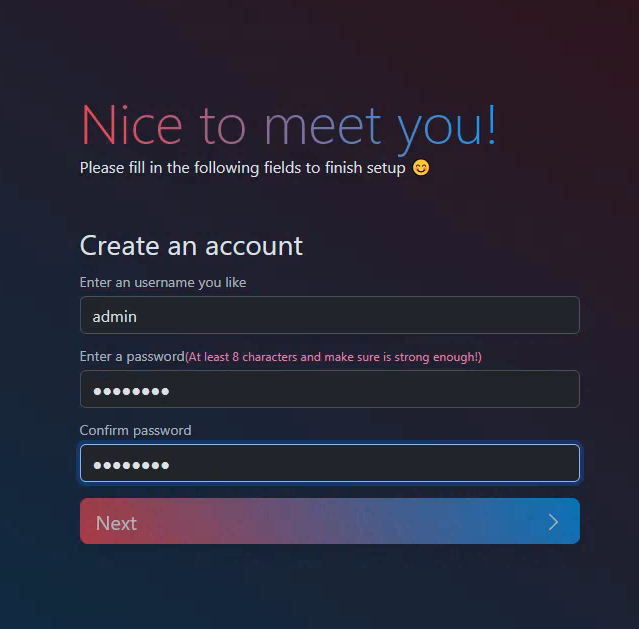
L'interfaccia WGDashboard consente la gestione della configurazione WireGuard e dei peer.
La dashboard è accessibile al primo avvio tramite l'indirizzo così composto:
https://
IP_PUBBLICO:10087/#/signin
La password da utilizzare al primo accesso è:
WireGuardDashboard99!
Al primo login viene richiesto il cambio password.
Configurazioni
Non sono presenti particolari personalizzazioni su questo template, si tratta di un'installazione minimale di Ubuntu Server che lascia spazio a qualsiasi tipo di utilizzo. Su questo template è disponibile Fail2ban.
Fail2ban attivo:
- Retry: 5
- Find Time 60min
- Ban Time 60min
Firewall UFW: aperta solo la porta 22.
Sono abilitate le porte UDP dalla 51800 alla 51900.
Se vuoi utilizzare una porta per WireGuard esterna a questo range devi abilitarla all'interno della macchina tramite i comandi UFW.
Versione del Template
1.0
Changelog
-